Release Log
Announcing Document Templates: Generate User Guides, SOPs, Release Notes, and More
Every documentation task has a different audience and purpose. A user guide for customers reads nothing like acceptance criteria for developers or an SOP for operations. Yet most documentation tools force you into one generic output and leave you to reshape it manually.
We built Document Templates so you can tell Easy Scribe exactly what kind of document you need before generation even starts. Pick a template, record or upload your walkthrough, and get a draft structured for the right context from the very first pass.
Why document templates matter
Templates are not just cosmetic wrappers. They shape the structure, tone, and level of detail that Easy Scribe produces. A well-chosen template means less rewriting, faster reviews, and documentation that actually matches the reader's expectations.
As industry research highlights, "a well-structured user guide can make all the difference in how customers interact with and understand your offering" (United Way Dallas). The same principle applies to every document type: the right structure accelerates comprehension and reduces follow-up questions.
The eight templates and who they help
When you create a new document in Easy Scribe, the Document Template dropdown now presents eight options. Here is what each one is designed for and which teams benefit most.
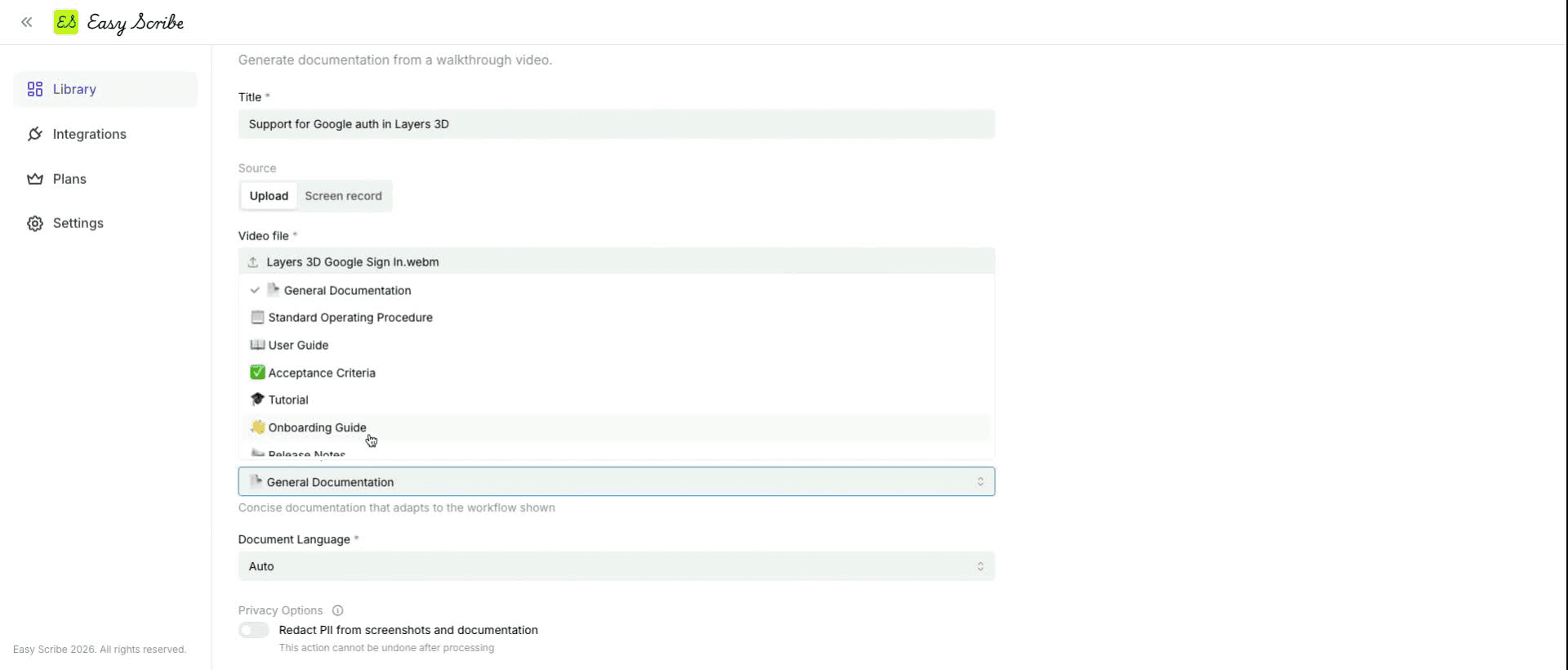
General Documentation
Concise, flexible documentation for any situation. This is the default when you need a straightforward, all-purpose guide and do not require a specialized structure. It works well for internal reference docs, quick how-tos, and ad-hoc process captures.
Best for: Anyone who needs a clean starting point without rigid formatting requirements.
Standard Operating Procedure
Structured operational steps for repeatable processes. If your team runs the same workflow regularly, from onboarding checklists to insurance claims processing, this template produces clear, sequenced steps designed for consistent execution.
Best for: Support and QA teams building reproducible guides and training manuals. Also valuable for process-heavy and regulated workflows that benefit from living SOPs.
User Guide
Task-focused product guidance written for end users. This is the template to reach for when you need to show customers or teammates how to accomplish something inside your product. The output emphasizes clear tasks, contextual screenshots, and practical instructions.
Best for: Product teams generating and updating feature documentation, technical writers converting recordings into polished product documentation, and anyone producing customer-facing help content.
Acceptance Criteria
Concise, testable requirements that describe what "done" looks like. Instead of prose, this template produces structured criteria that developers and QA engineers can validate against.
Best for: Developers creating acceptance criteria and feature documentation for completed work, and product managers aligning teams on expected behaviour before a release.
Tutorial
Guided learning content that walks the reader through a concept or skill step by step. Unlike a user guide, which is task-focused, a tutorial is designed to teach, making it ideal for educational material, onboarding courses, or feature deep-dives.
Best for: Technical writers, support teams, and educators building learning paths around a product.
Onboarding Guide
First-time user success content designed to reduce time-to-value. This template structures the output around the new-user journey: getting started, initial setup, and the first key actions.
Best for: Teams and individuals producing onboarding material and customer support content, especially startups and smaller teams without a dedicated technical-writing function.
Release Notes
Audience-facing product updates that communicate what changed and why it matters. Choose this when you want to turn a walkthrough of new features into a polished changelog entry.
Best for: Product teams that need to publish release communications quickly and keep documentation aligned with each product iteration.
Troubleshooting Guide
Issue diagnosis and resolution steps that help readers self-serve when something goes wrong. The output is organized around symptoms, causes, and fixes.
Best for: Support and QA teams, and any team that wants to reduce ticket volume by giving users clear resolution paths.
How to use document templates: step by step
Getting started takes less than a minute. Here is the full workflow.
Open the Library page and click + New Document.
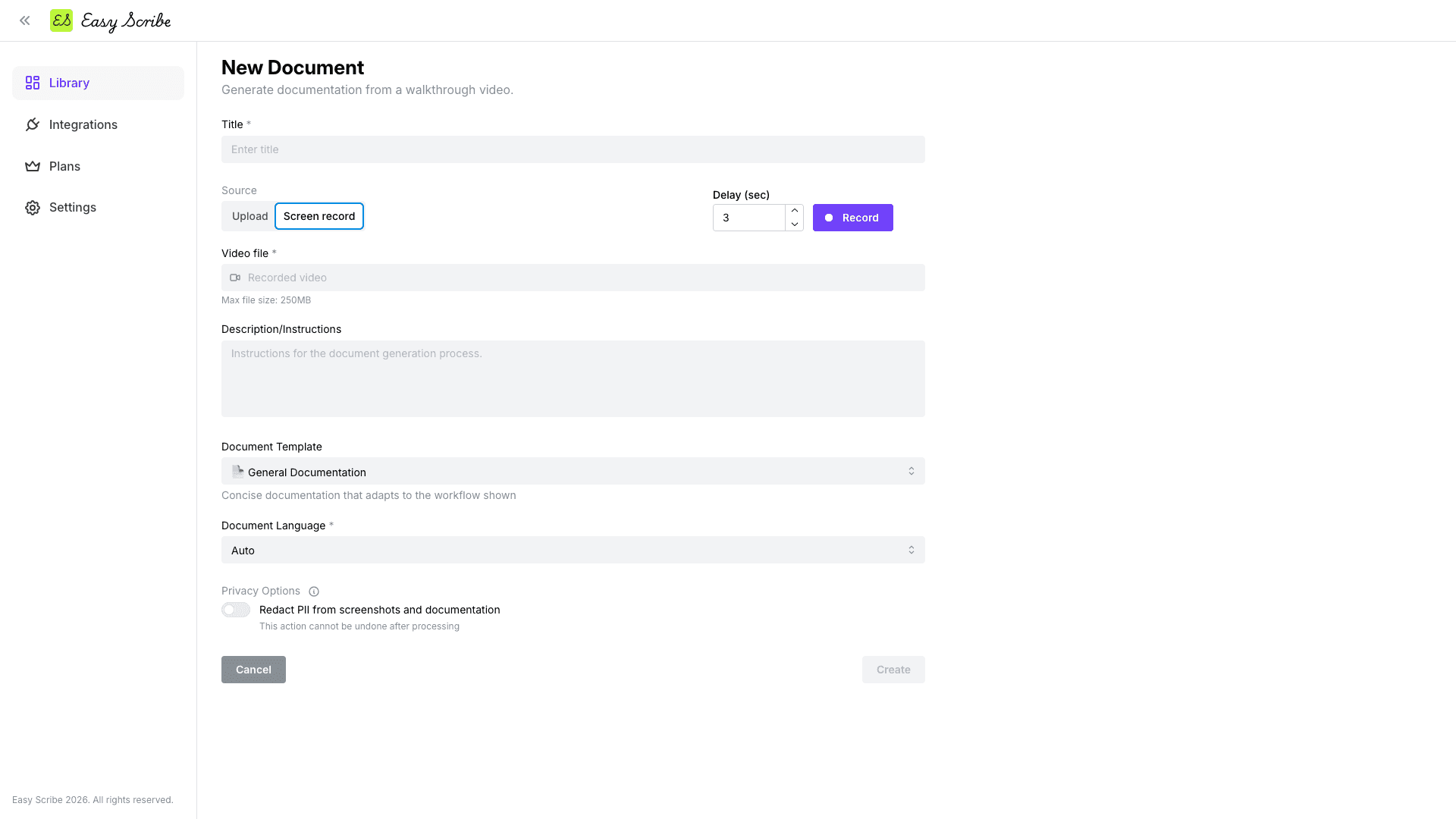
Choose Instant recording to record your screen right in the browser, or Upload from device to use an existing video.
On the New Document page, enter a descriptive Title (for example, "Onboarding: Create a team project").
Open the Document Template dropdown and select the template that fits your audience and purpose.
Set Document Language to Auto (recommended) or choose a specific language.
Optionally, add Description/Instructions to steer the structure and focus of the generated output.
Click Create.
Easy Scribe generates a structured, captioned, step-by-step guide with contextual screenshots pulled from your recording, all shaped by the template you selected. The draft opens in the rich text editor where you can refine headings, reorder images with drag-and-drop, and polish the copy before exporting.
Editing and exporting your templated document
Once generation is complete, the document opens in the Easy Scribe editor. You can:
Apply headings (H1 through H4), bold, italic, underline, bulleted and numbered lists, and alignment.
Drag and drop images to reposition screenshots within sections.
Add or remove manual screenshot points if you edited the video before generation.
When you are satisfied, export to the format your audience needs: Confluence (direct integration), Markdown, PDF, Word (DOCX), or HTML. For Confluence, you can create a new page or update an existing one, nest under a parent page, and override the title, all from inside Easy Scribe. See the Export to Confluence guide for full setup steps.
Tips for getting the most out of templates
Match the template to the audience, not the topic. A feature walkthrough aimed at customers should use the User Guide template. The same walkthrough aimed at QA should use Acceptance Criteria.
Use the Description/Instructions field. Tell Easy Scribe what to emphasize: the scope, the audience's skill level, or specific sections to highlight. This steers the generated content within the chosen template.
Narrate while recording. Turning the mic on lets Easy Scribe use your audio transcription to produce richer instructions.
Keep recordings focused. One task per recording keeps the generated document tight and easy to review. The in-app recorder supports sessions of around 85 minutes, but shorter clips produce better results.
Enable PII redaction when your walkthrough includes sensitive data. Easy Scribe redacts personally identifiable information in both text and screenshots.
Frequently asked questions
Can I change the template after a document is generated?
The template is selected at creation time and shapes the initial generation. If you need a different structure, create a new document from the same recording and choose the other template. Your recordings stay in the library for reuse.
Do I need a paid plan to use document templates?
The Free tier includes basic document generation. It supports up to 250 MB per video upload and up to 4 videos in your library. The Pro plan ($9.99/month) adds up to 5 GB per upload, unlimited videos, a faster processing queue, and priority email support.
What export formats work with every template?
All eight templates support the same export options: Confluence (direct integration), Markdown, PDF, Word (DOCX), and HTML.
Can I use templates with an existing video I recorded outside Easy Scribe?
Yes. Choose Upload from device when creating a new document, attach your video, and select a template. Desktop and mobile recordings are both supported. See the upload guide for detailed steps.
Where can I learn more about each template?
Visit the Document Templates page in our documentation for the full reference, including how to access the template selector and what each option produces.
Every documentation task has a different audience and purpose. A user guide for customers reads nothing like acceptance criteria for developers or an SOP for operations. Yet most documentation tools force you into one generic output and leave you to reshape it manually.
We built Document Templates so you can tell Easy Scribe exactly what kind of document you need before generation even starts. Pick a template, record or upload your walkthrough, and get a draft structured for the right context from the very first pass.
Why document templates matter
Templates are not just cosmetic wrappers. They shape the structure, tone, and level of detail that Easy Scribe produces. A well-chosen template means less rewriting, faster reviews, and documentation that actually matches the reader's expectations.
As industry research highlights, "a well-structured user guide can make all the difference in how customers interact with and understand your offering" (United Way Dallas). The same principle applies to every document type: the right structure accelerates comprehension and reduces follow-up questions.
The eight templates and who they help
When you create a new document in Easy Scribe, the Document Template dropdown now presents eight options. Here is what each one is designed for and which teams benefit most.
General Documentation
Concise, flexible documentation for any situation. This is the default when you need a straightforward, all-purpose guide and do not require a specialized structure. It works well for internal reference docs, quick how-tos, and ad-hoc process captures.
Best for: Anyone who needs a clean starting point without rigid formatting requirements.
Standard Operating Procedure
Structured operational steps for repeatable processes. If your team runs the same workflow regularly, from onboarding checklists to insurance claims processing, this template produces clear, sequenced steps designed for consistent execution.
Best for: Support and QA teams building reproducible guides and training manuals. Also valuable for process-heavy and regulated workflows that benefit from living SOPs.
User Guide
Task-focused product guidance written for end users. This is the template to reach for when you need to show customers or teammates how to accomplish something inside your product. The output emphasizes clear tasks, contextual screenshots, and practical instructions.
Best for: Product teams generating and updating feature documentation, technical writers converting recordings into polished product documentation, and anyone producing customer-facing help content.
Acceptance Criteria
Concise, testable requirements that describe what "done" looks like. Instead of prose, this template produces structured criteria that developers and QA engineers can validate against.
Best for: Developers creating acceptance criteria and feature documentation for completed work, and product managers aligning teams on expected behaviour before a release.
Tutorial
Guided learning content that walks the reader through a concept or skill step by step. Unlike a user guide, which is task-focused, a tutorial is designed to teach, making it ideal for educational material, onboarding courses, or feature deep-dives.
Best for: Technical writers, support teams, and educators building learning paths around a product.
Onboarding Guide
First-time user success content designed to reduce time-to-value. This template structures the output around the new-user journey: getting started, initial setup, and the first key actions.
Best for: Teams and individuals producing onboarding material and customer support content, especially startups and smaller teams without a dedicated technical-writing function.
Release Notes
Audience-facing product updates that communicate what changed and why it matters. Choose this when you want to turn a walkthrough of new features into a polished changelog entry.
Best for: Product teams that need to publish release communications quickly and keep documentation aligned with each product iteration.
Troubleshooting Guide
Issue diagnosis and resolution steps that help readers self-serve when something goes wrong. The output is organized around symptoms, causes, and fixes.
Best for: Support and QA teams, and any team that wants to reduce ticket volume by giving users clear resolution paths.
How to use document templates: step by step
Getting started takes less than a minute. Here is the full workflow.
Open the Library page and click + New Document.
Choose Instant recording to record your screen right in the browser, or Upload from device to use an existing video.
On the New Document page, enter a descriptive Title (for example, "Onboarding: Create a team project").
Open the Document Template dropdown and select the template that fits your audience and purpose.
Set Document Language to Auto (recommended) or choose a specific language.
Optionally, add Description/Instructions to steer the structure and focus of the generated output.
Click Create.
Easy Scribe generates a structured, captioned, step-by-step guide with contextual screenshots pulled from your recording, all shaped by the template you selected. The draft opens in the rich text editor where you can refine headings, reorder images with drag-and-drop, and polish the copy before exporting.
Editing and exporting your templated document
Once generation is complete, the document opens in the Easy Scribe editor. You can:
Apply headings (H1 through H4), bold, italic, underline, bulleted and numbered lists, and alignment.
Drag and drop images to reposition screenshots within sections.
Add or remove manual screenshot points if you edited the video before generation.
When you are satisfied, export to the format your audience needs: Confluence (direct integration), Markdown, PDF, Word (DOCX), or HTML. For Confluence, you can create a new page or update an existing one, nest under a parent page, and override the title, all from inside Easy Scribe. See the Export to Confluence guide for full setup steps.
Tips for getting the most out of templates
Match the template to the audience, not the topic. A feature walkthrough aimed at customers should use the User Guide template. The same walkthrough aimed at QA should use Acceptance Criteria.
Use the Description/Instructions field. Tell Easy Scribe what to emphasize: the scope, the audience's skill level, or specific sections to highlight. This steers the generated content within the chosen template.
Narrate while recording. Turning the mic on lets Easy Scribe use your audio transcription to produce richer instructions.
Keep recordings focused. One task per recording keeps the generated document tight and easy to review. The in-app recorder supports sessions of around 85 minutes, but shorter clips produce better results.
Enable PII redaction when your walkthrough includes sensitive data. Easy Scribe redacts personally identifiable information in both text and screenshots.
Frequently asked questions
Can I change the template after a document is generated?
The template is selected at creation time and shapes the initial generation. If you need a different structure, create a new document from the same recording and choose the other template. Your recordings stay in the library for reuse.
Do I need a paid plan to use document templates?
The Free tier includes basic document generation. It supports up to 250 MB per video upload and up to 4 videos in your library. The Pro plan ($9.99/month) adds up to 5 GB per upload, unlimited videos, a faster processing queue, and priority email support.
What export formats work with every template?
All eight templates support the same export options: Confluence (direct integration), Markdown, PDF, Word (DOCX), and HTML.
Can I use templates with an existing video I recorded outside Easy Scribe?
Yes. Choose Upload from device when creating a new document, attach your video, and select a template. Desktop and mobile recordings are both supported. See the upload guide for detailed steps.
Where can I learn more about each template?
Visit the Document Templates page in our documentation for the full reference, including how to access the template selector and what each option produces.

Easy Scribe
Rich documentation, walkthroughs, and guides from screen recordings.
Quick links
RESOURCES
© 2025 Easy Scribe. All Rights Reserved