Article
How to Turn a Video into a Step-by-Step Guide with Easy Scribe
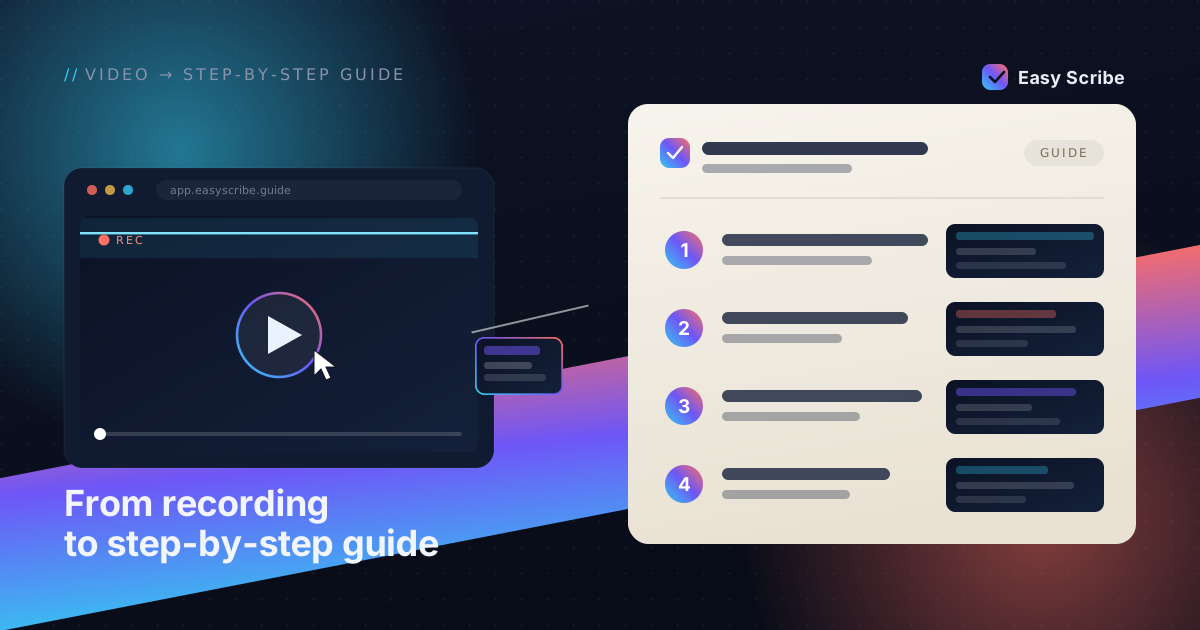
Recording your screen is often the fastest way to capture a workflow. You click through the process once, maybe narrate as you go, and in a few minutes you have a full visual record of every step. But when it comes time to share that knowledge, a raw video is rarely enough.
Written, step-by-step guides remain essential for teams that need documentation they can search, skim, update, and embed in knowledge bases. In this article we will look at why written guides still matter alongside video, and then walk through exactly how Easy Scribe bridges the gap by turning any screen recording into a polished, structured guide, complete with contextual screenshots, in minutes.
Why Recording Is the Easiest Way to Capture Knowledge
If you have ever tried to write a detailed how-to from scratch, you know the pain: open the app, perform a step, switch to your editor, describe what you just did, take a screenshot, crop it, paste it, repeat. It is slow, tedious, and error-prone.
Screen recording flips that process. You simply perform the task while the recorder captures everything. There is no context-switching and no risk of forgetting a step. As one industry source puts it, video "shows exact visual steps eliminating ambiguity that text instructions create."
The problem is that a video file on its own has serious limitations as documentation.
Why Written Step-by-Step Guides Are Still Essential
Video is great for capturing, but written documentation wins when people need to use the information day to day:
Searchability. Text-based guides can be indexed, searched by keyword, and linked to from other pages. Video content is difficult to search or reference at a specific point without a transcript.
Scannability. Readers can jump to the exact step they need in seconds. With video, they must scrub through a timeline.
Accessibility. Written guides with proper headings and alt text on images work with screen readers and assistive technology out of the box.
Maintainability. Updating a single step in a written guide takes moments. Updating a video often means re-recording the whole thing.
Portability. A Markdown file, PDF, or Confluence page can live anywhere in your stack without bandwidth or player dependencies.
The ideal workflow captures knowledge via video (fast, complete, low effort) and delivers it as a structured written guide (searchable, scannable, easy to maintain). That is exactly what Easy Scribe does.
How Easy Scribe Turns a Recording into a Step-by-Step Guide
Easy Scribe is a browser-based documentation tool that takes a screen recording and generates an ordered, captioned guide with contextual screenshots pulled directly from the video. No desktop app, no browser extension, no install at all.
Here is the end-to-end process:
1. Record or Upload Your Video
You have two options:
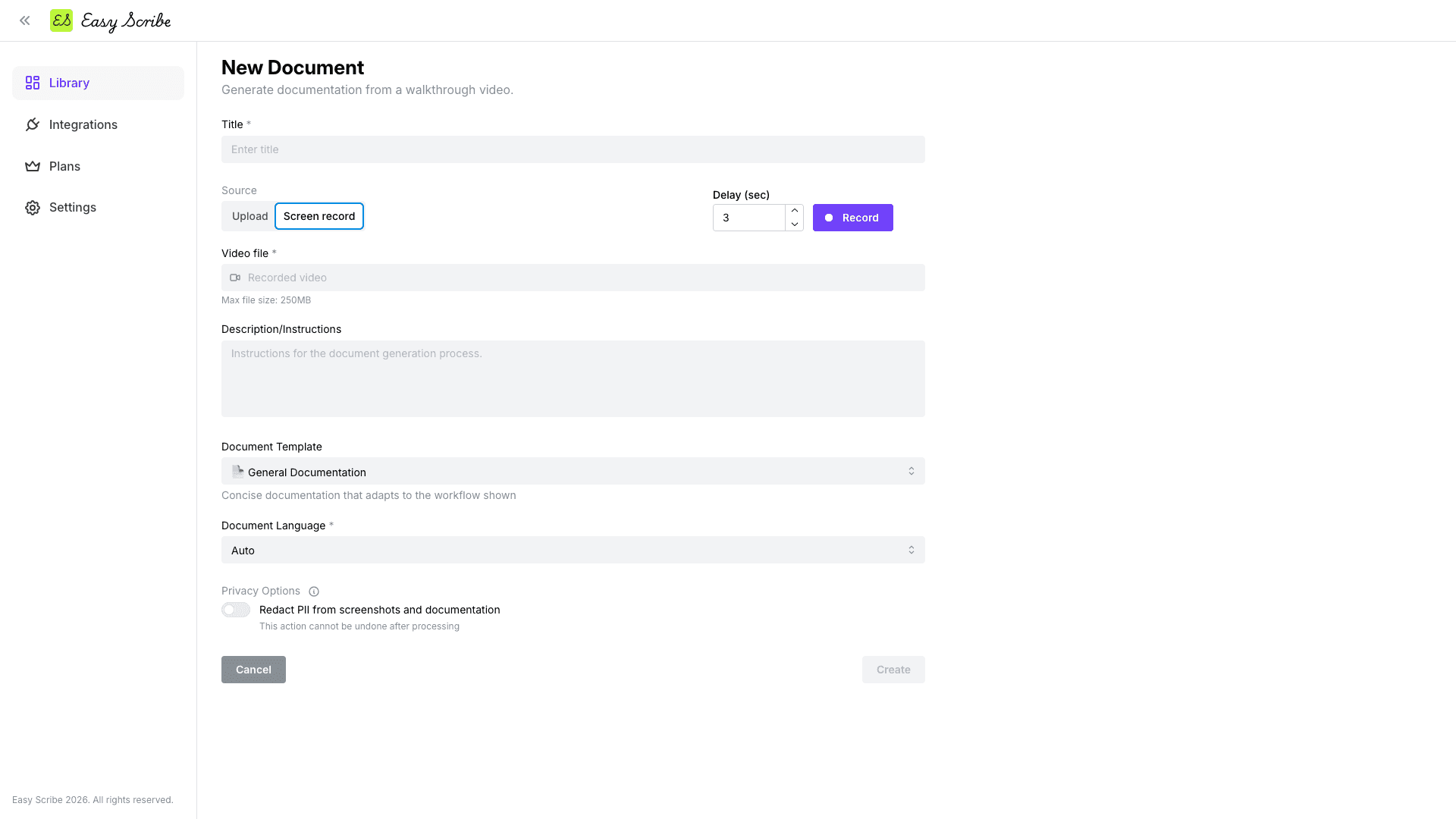
Use the in-app recorder. Open your Library, click + New Document, and choose Instant recording. Toggle the mic on if you want to narrate (narration feeds the generated instructions via audio transcription). Adjust the start delay if needed, then hit Start recording. When you are done, click Stop.
Upload an existing recording. Choose Upload from device instead and attach any video file you already have. Desktop and mobile recordings are both supported.
2. Trim and Add Screenshot Points
Easy Scribe includes a lightweight built-in editor. Use the timeline to set In and Out points and cut away dead time. You can also move the playhead to key moments and click Add Screenshot Point to mark exactly which frames should become screenshots in your guide. These manual points are added on top of the auto-captured ones, giving you precise control.
3. Choose a Document Template
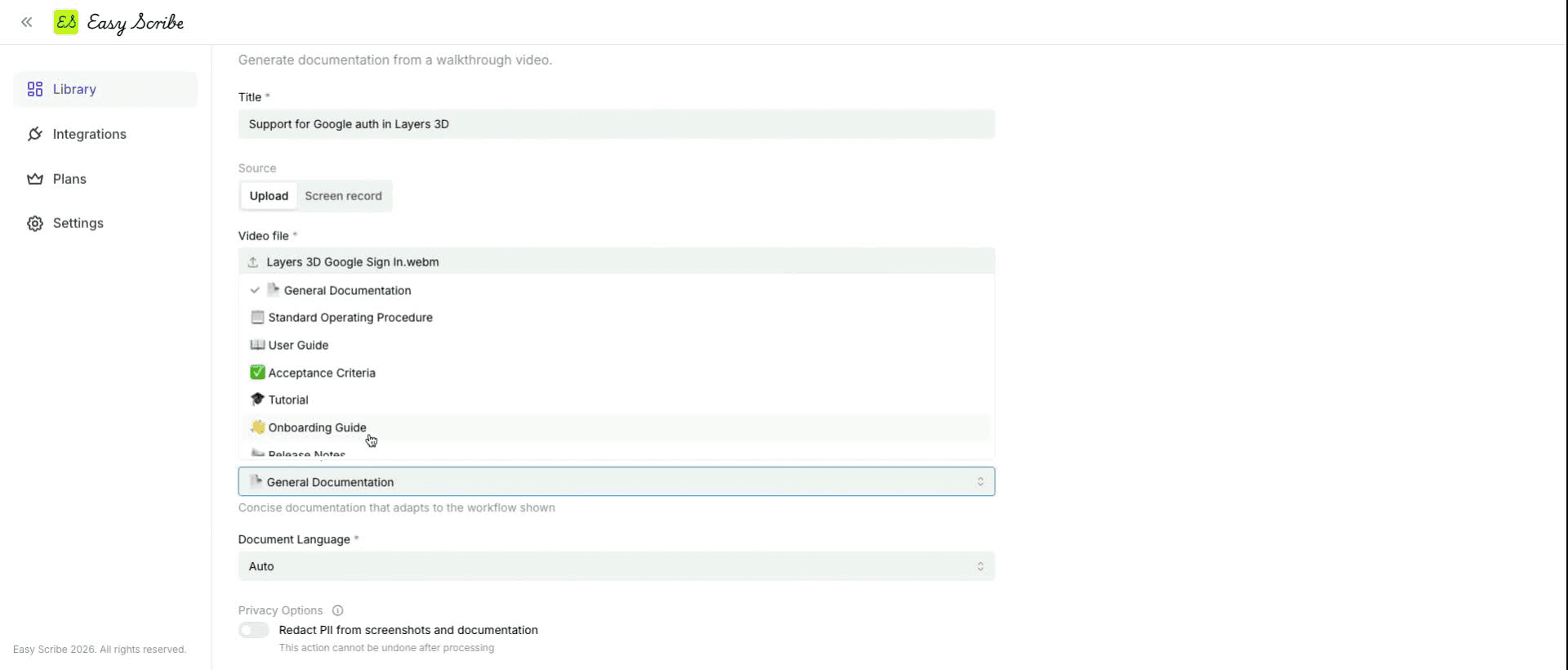
Before generating, pick the template that fits your audience. Easy Scribe offers the following templates:
General Documentation
Standard Operating Procedure
User Guide
Acceptance Criteria
Tutorial
Onboarding Guide
Release Notes
Troubleshooting Guide
4. Set Language and Privacy Options
Set the output language (or leave it on Auto to detect automatically). If your recording contains sensitive data, enable PII redaction to automatically redact Personally Identifiable Information in both the generated text and screenshots.
5. Generate
Click Create. Easy Scribe processes the video and produces a structured, step-by-step guide with screenshots tied to each relevant step.
6. Refine in the Editor
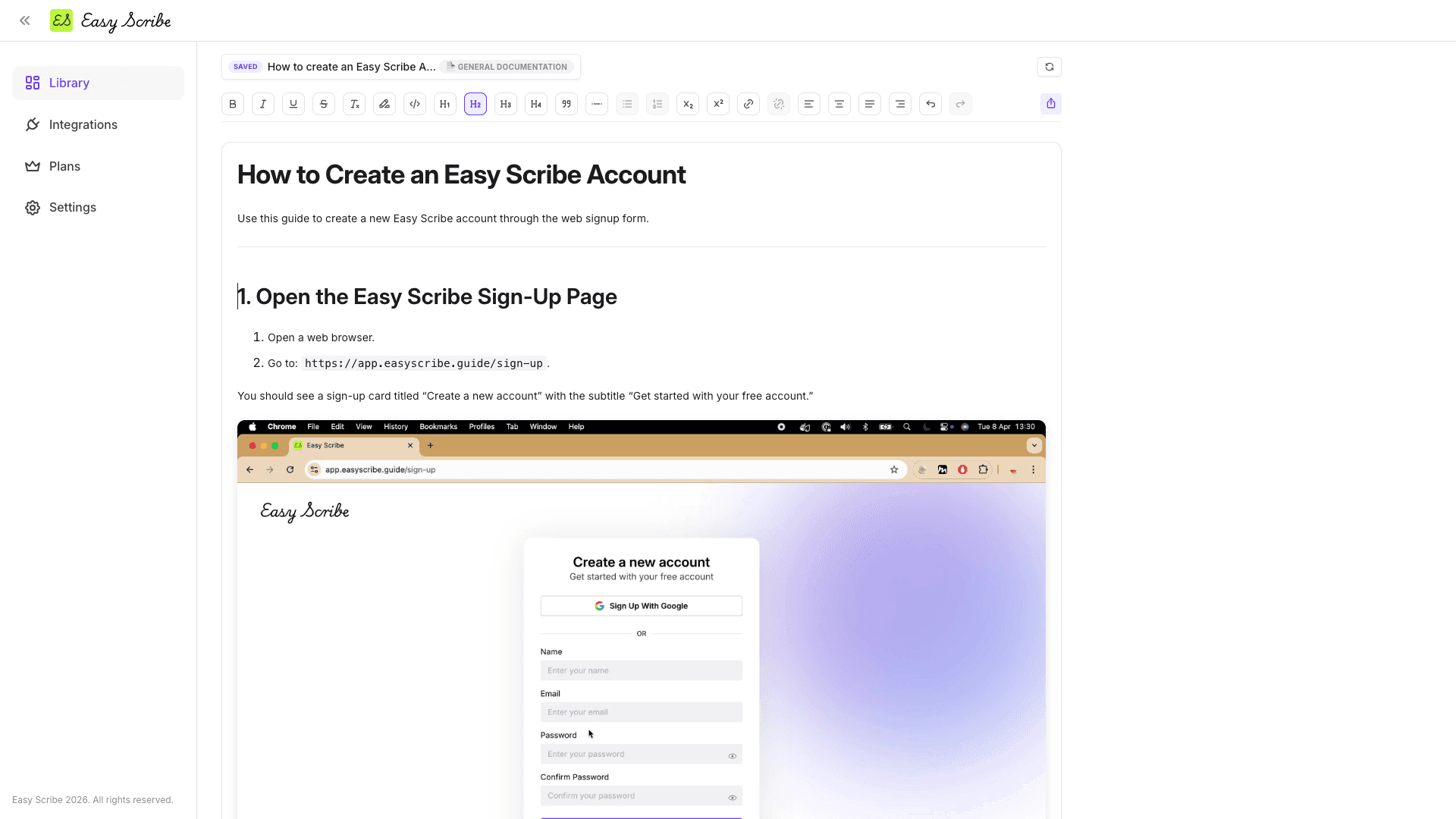
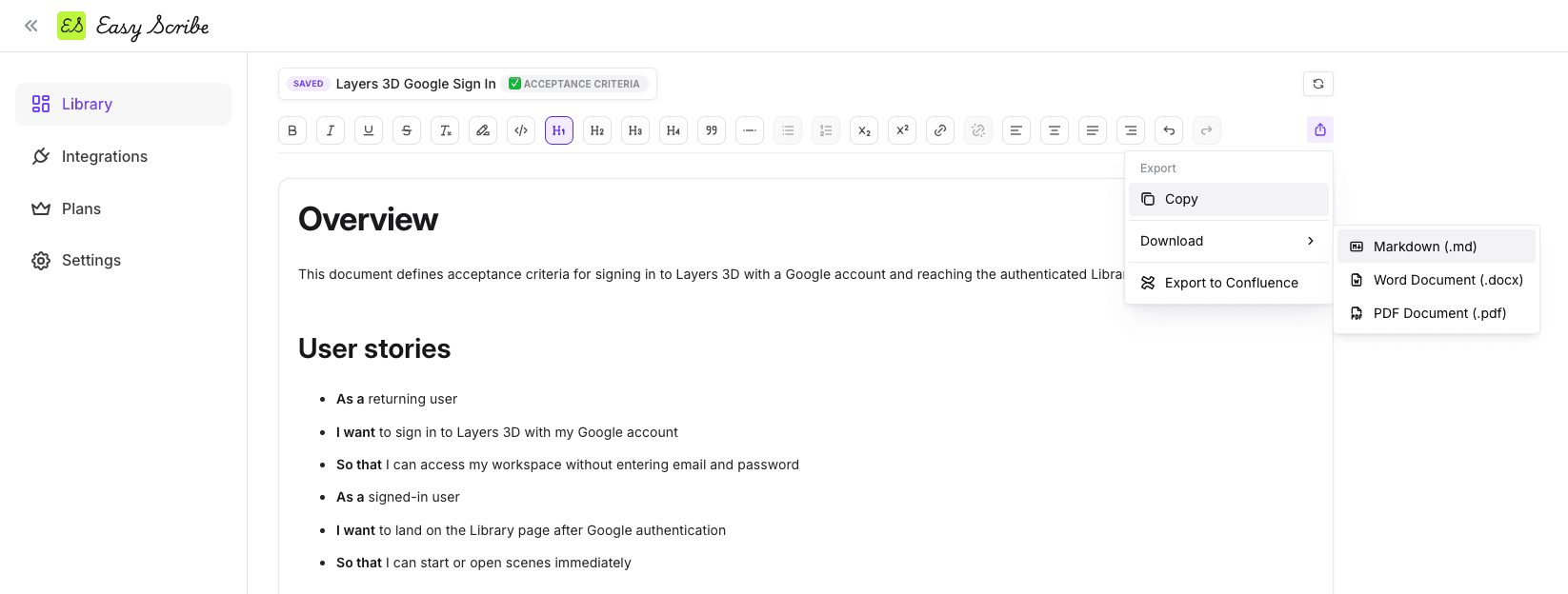
The generated draft opens in a rich text editor where you can adjust headings (H1 through H4), bold or italicize text, reorder steps, add links, and drag and drop images to reposition them. The editor autosaves your work.
7. Export Anywhere
When you are happy with the guide, export it in the format your team needs:
Confluence (direct OAuth integration with create or update page, parent page nesting, and title override)
Markdown
PDF
Word (DOCX)
HTML
Key Features That Make the Difference
Auto-screenshot extraction. Easy Scribe automatically identifies the right frames and pulls contextual screenshots so you do not have to capture them manually.
Manual screenshot points. Need a screenshot at a very specific moment? Mark it on the timeline and Easy Scribe includes it alongside the auto-captured ones.
Audio transcription. If you narrate during the recording, Easy Scribe uses your spoken words to generate richer, more accurate step descriptions.
PII redaction. Sensitive data in your screenshots or text is automatically redacted, and you can still edit both after generation.
No install required. Everything runs in the browser. No extension, no desktop client, no IT ticket.
Mobile recording support. Upload recordings from mobile devices to generate documentation the same way.
Who Benefits Most
Easy Scribe is built for product teams, developers, technical writers, support and QA teams, and smaller teams like startups, consultants, and freelancers. Anyone who already records their screen to show a process can now get a publish-ready written guide from that same recording with almost zero extra effort.
Getting Started
Easy Scribe offers a free tier that includes basic document generation, up to 250 MB per video upload, and up to 4 videos in your library. The Pro plan at $9.99 per month (with a yearly billing option that saves 17%) raises the upload limit to 5 GB, removes the video library cap, and adds a faster processing queue plus priority email support.
Sign up at Easy Scribe and generate your first guide in minutes.
Frequently Asked Questions
Do I need to install anything to use Easy Scribe?
No. Easy Scribe is entirely browser-based. There is no desktop app, browser extension, or plugin to install. You open the web app, record or upload your video, and generate your documentation.
Can I use a video I have already recorded?
Yes. When creating a new document, choose Upload from device and attach your existing recording. Both desktop and mobile screen recordings are supported.
How does Easy Scribe decide where to place screenshots?
Easy Scribe automatically extracts contextual screenshots from key moments in the recording. You can also add manual screenshot points in the built-in video editor for extra precision. The final guide includes both auto-captured and manually marked screenshots.
What output formats does Easy Scribe support?
You can export your finished guide to Confluence (via a direct integration), Markdown, PDF, Word (DOCX), or HTML.
Does Easy Scribe handle sensitive information in recordings?
Yes. Easy Scribe includes built-in PII redaction that works on both text and screenshots. After generation, you can still edit the redacted content in the editor if adjustments are needed.
Recording your screen is often the fastest way to capture a workflow. You click through the process once, maybe narrate as you go, and in a few minutes you have a full visual record of every step. But when it comes time to share that knowledge, a raw video is rarely enough.
Written, step-by-step guides remain essential for teams that need documentation they can search, skim, update, and embed in knowledge bases. In this article we will look at why written guides still matter alongside video, and then walk through exactly how Easy Scribe bridges the gap by turning any screen recording into a polished, structured guide, complete with contextual screenshots, in minutes.
Why Recording Is the Easiest Way to Capture Knowledge
If you have ever tried to write a detailed how-to from scratch, you know the pain: open the app, perform a step, switch to your editor, describe what you just did, take a screenshot, crop it, paste it, repeat. It is slow, tedious, and error-prone.
Screen recording flips that process. You simply perform the task while the recorder captures everything. There is no context-switching and no risk of forgetting a step. As one industry source puts it, video "shows exact visual steps eliminating ambiguity that text instructions create."
The problem is that a video file on its own has serious limitations as documentation.
Why Written Step-by-Step Guides Are Still Essential
Video is great for capturing, but written documentation wins when people need to use the information day to day:
Searchability. Text-based guides can be indexed, searched by keyword, and linked to from other pages. Video content is difficult to search or reference at a specific point without a transcript.
Scannability. Readers can jump to the exact step they need in seconds. With video, they must scrub through a timeline.
Accessibility. Written guides with proper headings and alt text on images work with screen readers and assistive technology out of the box.
Maintainability. Updating a single step in a written guide takes moments. Updating a video often means re-recording the whole thing.
Portability. A Markdown file, PDF, or Confluence page can live anywhere in your stack without bandwidth or player dependencies.
The ideal workflow captures knowledge via video (fast, complete, low effort) and delivers it as a structured written guide (searchable, scannable, easy to maintain). That is exactly what Easy Scribe does.
How Easy Scribe Turns a Recording into a Step-by-Step Guide
Easy Scribe is a browser-based documentation tool that takes a screen recording and generates an ordered, captioned guide with contextual screenshots pulled directly from the video. No desktop app, no browser extension, no install at all.
Here is the end-to-end process:
1. Record or Upload Your Video
You have two options:
Use the in-app recorder. Open your Library, click + New Document, and choose Instant recording. Toggle the mic on if you want to narrate (narration feeds the generated instructions via audio transcription). Adjust the start delay if needed, then hit Start recording. When you are done, click Stop.
Upload an existing recording. Choose Upload from device instead and attach any video file you already have. Desktop and mobile recordings are both supported.
2. Trim and Add Screenshot Points
Easy Scribe includes a lightweight built-in editor. Use the timeline to set In and Out points and cut away dead time. You can also move the playhead to key moments and click Add Screenshot Point to mark exactly which frames should become screenshots in your guide. These manual points are added on top of the auto-captured ones, giving you precise control.
3. Choose a Document Template
Before generating, pick the template that fits your audience. Easy Scribe offers the following templates:
General Documentation
Standard Operating Procedure
User Guide
Acceptance Criteria
Tutorial
Onboarding Guide
Release Notes
Troubleshooting Guide
4. Set Language and Privacy Options
Set the output language (or leave it on Auto to detect automatically). If your recording contains sensitive data, enable PII redaction to automatically redact Personally Identifiable Information in both the generated text and screenshots.
5. Generate
Click Create. Easy Scribe processes the video and produces a structured, step-by-step guide with screenshots tied to each relevant step.
6. Refine in the Editor
The generated draft opens in a rich text editor where you can adjust headings (H1 through H4), bold or italicize text, reorder steps, add links, and drag and drop images to reposition them. The editor autosaves your work.
7. Export Anywhere
When you are happy with the guide, export it in the format your team needs:
Confluence (direct OAuth integration with create or update page, parent page nesting, and title override)
Markdown
PDF
Word (DOCX)
HTML
Key Features That Make the Difference
Auto-screenshot extraction. Easy Scribe automatically identifies the right frames and pulls contextual screenshots so you do not have to capture them manually.
Manual screenshot points. Need a screenshot at a very specific moment? Mark it on the timeline and Easy Scribe includes it alongside the auto-captured ones.
Audio transcription. If you narrate during the recording, Easy Scribe uses your spoken words to generate richer, more accurate step descriptions.
PII redaction. Sensitive data in your screenshots or text is automatically redacted, and you can still edit both after generation.
No install required. Everything runs in the browser. No extension, no desktop client, no IT ticket.
Mobile recording support. Upload recordings from mobile devices to generate documentation the same way.
Who Benefits Most
Easy Scribe is built for product teams, developers, technical writers, support and QA teams, and smaller teams like startups, consultants, and freelancers. Anyone who already records their screen to show a process can now get a publish-ready written guide from that same recording with almost zero extra effort.
Getting Started
Easy Scribe offers a free tier that includes basic document generation, up to 250 MB per video upload, and up to 4 videos in your library. The Pro plan at $9.99 per month (with a yearly billing option that saves 17%) raises the upload limit to 5 GB, removes the video library cap, and adds a faster processing queue plus priority email support.
Sign up at Easy Scribe and generate your first guide in minutes.
Frequently Asked Questions
Do I need to install anything to use Easy Scribe?
No. Easy Scribe is entirely browser-based. There is no desktop app, browser extension, or plugin to install. You open the web app, record or upload your video, and generate your documentation.
Can I use a video I have already recorded?
Yes. When creating a new document, choose Upload from device and attach your existing recording. Both desktop and mobile screen recordings are supported.
How does Easy Scribe decide where to place screenshots?
Easy Scribe automatically extracts contextual screenshots from key moments in the recording. You can also add manual screenshot points in the built-in video editor for extra precision. The final guide includes both auto-captured and manually marked screenshots.
What output formats does Easy Scribe support?
You can export your finished guide to Confluence (via a direct integration), Markdown, PDF, Word (DOCX), or HTML.
Does Easy Scribe handle sensitive information in recordings?
Yes. Easy Scribe includes built-in PII redaction that works on both text and screenshots. After generation, you can still edit the redacted content in the editor if adjustments are needed.

Easy Scribe
Rich documentation, walkthroughs, and guides from screen recordings.
Quick links
RESOURCES
© 2025 Easy Scribe. All Rights Reserved