Article
How Developers Use Easy Scribe as an Acceptance Criteria Template Generator
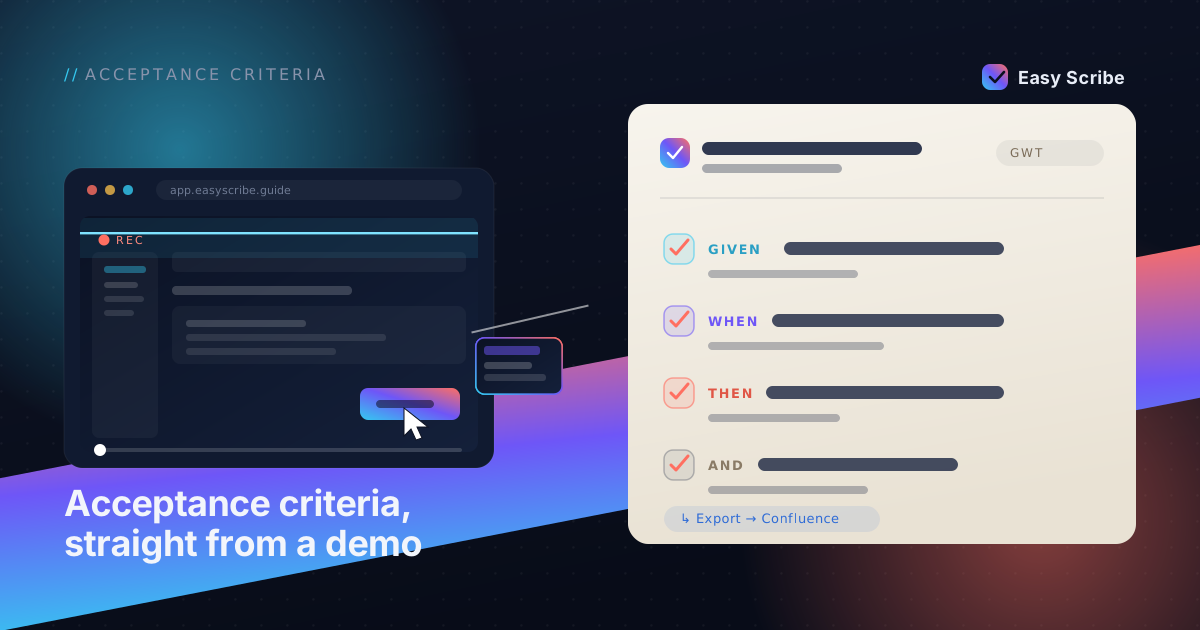
Writing acceptance criteria is one of those tasks that every developer knows matters, yet it consistently falls to the bottom of the priority list. Acceptance criteria are a set of conditions that must be met before a product or feature is considered complete, serving as a communication tool between product managers, developers, engineers, and other stakeholders. One frequent challenge is ambiguity; criteria that are not clearly defined can lead to misunderstandings between stakeholders and the development team, resulting in rework and delays.
If you are a developer on a small team or at a startup, you are likely wearing multiple hats and documentation often gets deprioritized. Easy Scribe gives you a faster path: record your screen as you walk through a completed feature, select the Acceptance Criteria template, and let the tool generate structured, testable requirements with contextual screenshots. No writing from scratch, no wrestling with blank documents.
Why Acceptance Criteria Are Hard to Get Right
Within Agile methodologies, clear and well-defined acceptance criteria are essential for reducing misunderstandings and minimizing the risk of rework. Yet in practice, teams struggle with this for several reasons:
Ambiguity in acceptance criteria can lead to confusion, misinterpretation, and inconsistent implementation, posing significant challenges during development.
The main challenge of writing good acceptance criteria is keeping a balance between detail and broadness.
Startup teams, primarily engaged in development, often possess minimal skills in defining requirements and may lack a dedicated product owner or BA to take on the task.
The result? Vague Jira tickets, misaligned expectations, and features that need rework after review. Easy Scribe addresses this by letting you demonstrate the feature on screen and then generating the acceptance criteria from what it observes.
How Easy Scribe Solves This
Easy Scribe is a documentation tool that turns a screen recording into accurate, step-by-step documentation with contextual screenshots. For developers, the Acceptance Criteria document template is the standout: it produces concise, testable requirements directly from your walkthrough of a feature.
Here is how it fits into a typical developer workflow.
Step 1: Record or Upload Your Walkthrough
You have two options:
Use the in-app screen recorder - Go to Library, click + New Document, and select Instant recording. The browser-based recorder needs no install or extension. Toggle the mic on if you want to narrate the feature behaviour, adjust the start delay, and hit Start recording. Walk through the feature, then click Stop.
Upload an existing recording - If you already have a screen capture (from a demo, a QA session, or a mobile recording), choose Upload from device and attach the video file.
Step 2: Select the Acceptance Criteria Template
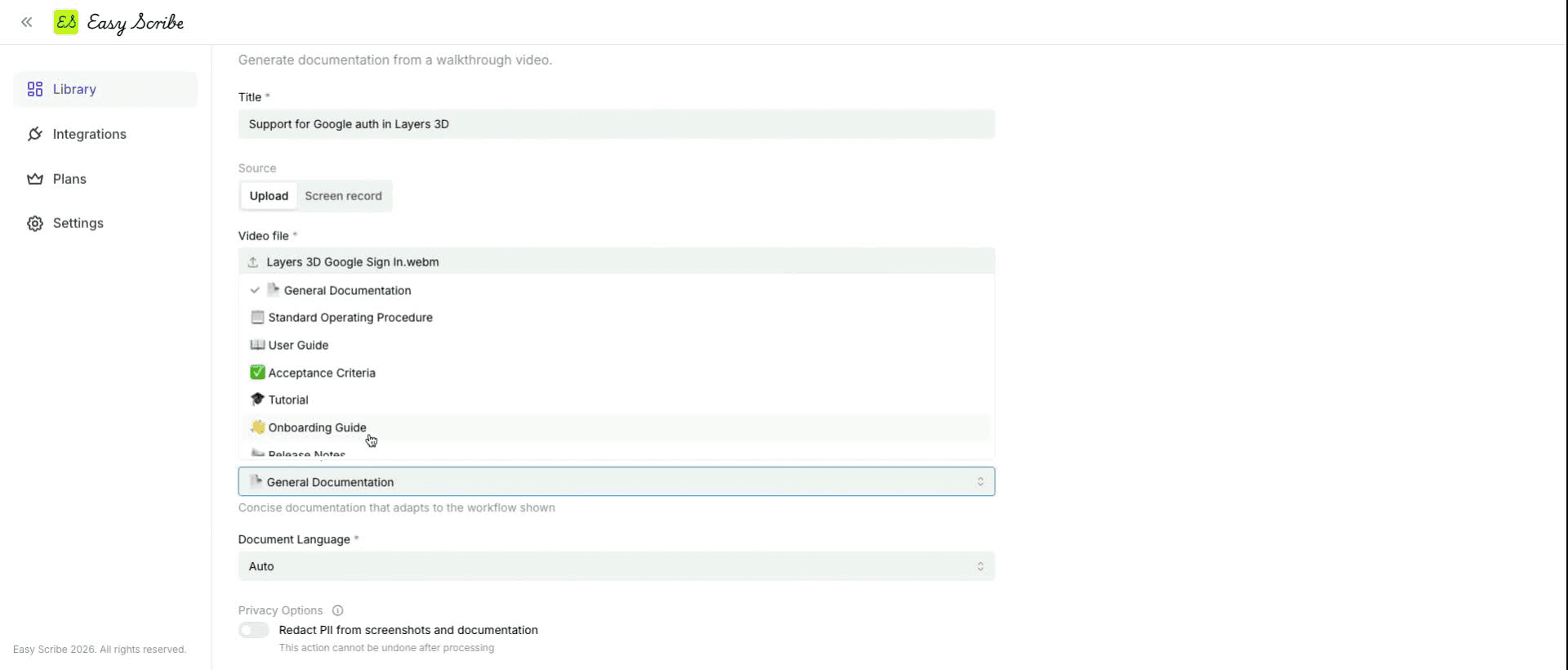
On the New Document page, open the Document Template dropdown. Easy Scribe offers the following templates:
General Documentation
Standard Operating Procedure
User Guide
Acceptance Criteria
Tutorial
Onboarding Guide
Release Notes
Troubleshooting Guide
Select Acceptance Criteria. This tells Easy Scribe to structure the output as concise, testable requirements rather than a narrative guide.
Step 3: Add a Title and Optional Instructions
Give the document a clear title (e.g., "Google Sign-In Feature Acceptance Criteria"). In the Description/Instructions field, you can steer the output by noting the audience, specific scenarios to emphasize, or edge cases you want covered.
Step 4: Generate and Refine
Click Create. Easy Scribe processes the recording, extracts contextual screenshots at key moments, and generates structured acceptance criteria. The draft opens in a rich text editor where you can:
Edit headings, bullet points, and step text
Reorder or remove screenshots by dragging and dropping
Add manual detail for edge cases
Apply formatting (H1 to H4, bold, italic, lists, links)
The editor autosaves, so your changes are never lost.

Step 5: Copy into Your Jira Tickets
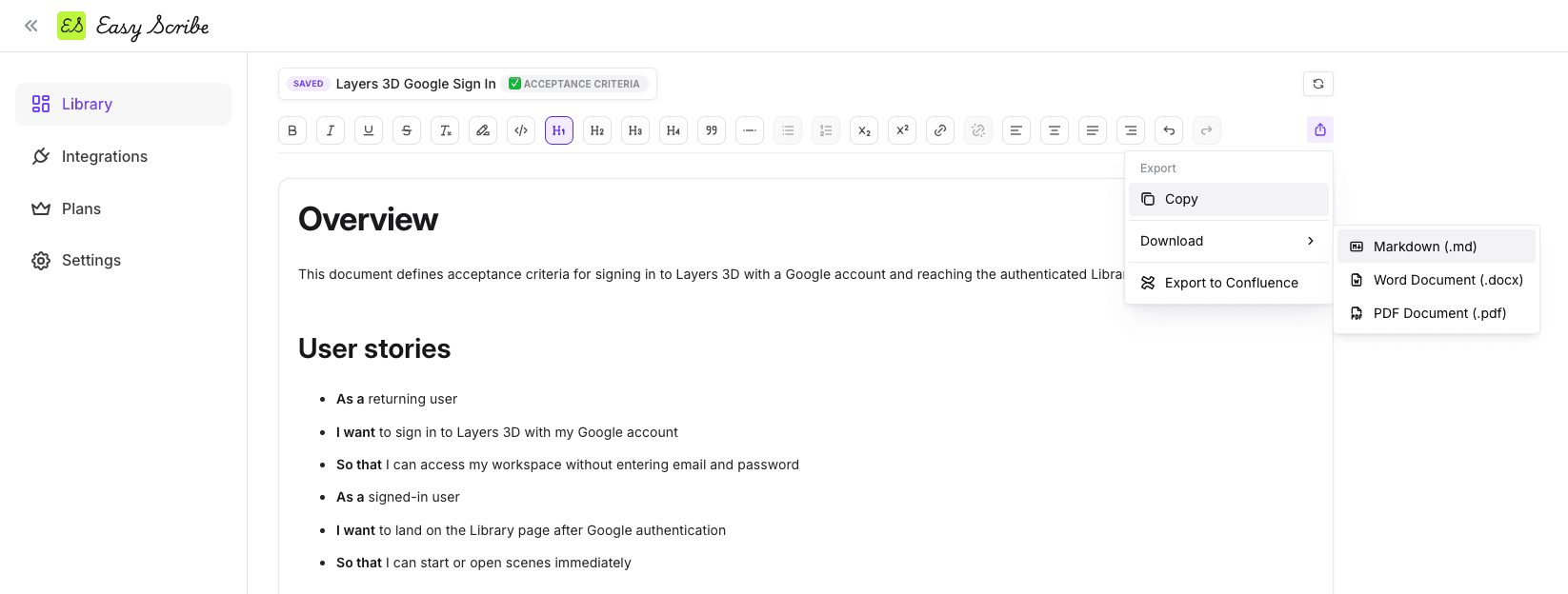
Once you are happy with the output, use the Copy option in the export menu to copy the content to your clipboard. Paste it directly into your Jira ticket's description or acceptance criteria field. The formatting carries over, giving your team a clear, visual reference without extra effort.
Beyond Acceptance Criteria: Other Developer Use Cases
The Acceptance Criteria template is just one of eight document types Easy Scribe supports. Here are other templates developers and startup teams find useful:
User Guide - Record a walkthrough of your product's key flows and generate task-focused product guidance for end users or beta testers.
Release Notes - Capture what changed in a release, select the Release Notes template, and generate audience-facing product updates.
Troubleshooting Guide - Reproduce a bug or a known issue on screen, then generate an issue diagnosis and resolution document for your support team or knowledge base.
Standard Operating Procedure - For process-heavy workflows, generate structured operational steps that keep the team aligned.
Tutorial - Turn a coding walkthrough or integration setup into guided learning content for your team wiki.
Each template shapes the output to match the document's purpose, so you spend less time reformatting and more time shipping.
Push Documentation Straight to Confluence
If your team uses Confluence as a knowledge base, Easy Scribe's direct integration saves another step. After generating and refining your document, you can export it to Confluence without leaving the editor:
Click the export icon and select Export to Confluence.
Connect your Atlassian site via OAuth (first time only).
Choose your Confluence Site and Space.
Select Create new page or Update existing page (by Page ID).
Optionally set a Parent Page ID to nest the document, or override the title.
Click Export.
Your acceptance criteria, feature documentation, or troubleshooting guide appears as a live Confluence page, ready for the rest of the team. This is especially useful for startup teams that use Confluence alongside Jira, keeping requirements and documentation in a single ecosystem.
For other destinations, Easy Scribe also exports to Markdown, PDF, Word (DOCX), and HTML. The Markdown export, for example, drops cleanly into a GitHub or GitLab repo.
Practical Tips for Developers
Keep recordings focused. One feature or flow per recording produces the clearest acceptance criteria. The in-app recorder supports sessions of around 85 minutes, but shorter clips yield better results.
Narrate as you record. Turning the mic on and describing what you are doing gives the AI more context, since Easy Scribe uses audio transcription to feed the generated instructions.
Use the video editor to trim. Before generating, open the built-in editor to set In/Out points and remove dead time. You can also add manual screenshot points at key transitions like button clicks or form submissions.
Enable PII redaction. If your walkthrough touches staging data with real user information, Easy Scribe's PII redaction removes personally identifiable information from both text and screenshots.
Leverage the Description/Instructions field. A single sentence like "Focus on the error states and edge cases for the payment flow" can meaningfully improve the generated output.
Frequently Asked Questions
What is the Acceptance Criteria template in Easy Scribe?
The Acceptance Criteria template is one of eight document templates available in Easy Scribe. When selected, it structures the generated output as concise, testable requirements based on the screen recording you provide. It is designed for developers creating acceptance criteria and feature documentation for completed work.
Can I paste Easy Scribe output directly into Jira?
Yes. Use the Copy option from the export menu in the Easy Scribe editor. The formatted content copies to your clipboard and can be pasted into a Jira ticket's description or acceptance criteria field.
Does Easy Scribe work with Confluence?
Yes. Easy Scribe has a direct Confluence integration via OAuth. You can create a new Confluence page or update an existing one (by Page ID), choose the target space, and optionally nest the page under a parent. See the full setup in the Easy Scribe Confluence export docs.
Is Easy Scribe free to use?
Easy Scribe offers a free tier that includes up to 250 MB per video upload, up to 4 videos in your library, and basic document generation. The Pro plan at $9.99/month adds up to 5 GB per upload, unlimited videos, a faster processing queue, and priority email support.
Do I need to install anything to use Easy Scribe?
No. Easy Scribe is entirely browser-based. The in-app screen recorder, video editor, document editor, and export features all run in your browser with no install or extension required.
Writing acceptance criteria is one of those tasks that every developer knows matters, yet it consistently falls to the bottom of the priority list. Acceptance criteria are a set of conditions that must be met before a product or feature is considered complete, serving as a communication tool between product managers, developers, engineers, and other stakeholders. One frequent challenge is ambiguity; criteria that are not clearly defined can lead to misunderstandings between stakeholders and the development team, resulting in rework and delays.
If you are a developer on a small team or at a startup, you are likely wearing multiple hats and documentation often gets deprioritized. Easy Scribe gives you a faster path: record your screen as you walk through a completed feature, select the Acceptance Criteria template, and let the tool generate structured, testable requirements with contextual screenshots. No writing from scratch, no wrestling with blank documents.
Why Acceptance Criteria Are Hard to Get Right
Within Agile methodologies, clear and well-defined acceptance criteria are essential for reducing misunderstandings and minimizing the risk of rework. Yet in practice, teams struggle with this for several reasons:
Ambiguity in acceptance criteria can lead to confusion, misinterpretation, and inconsistent implementation, posing significant challenges during development.
The main challenge of writing good acceptance criteria is keeping a balance between detail and broadness.
Startup teams, primarily engaged in development, often possess minimal skills in defining requirements and may lack a dedicated product owner or BA to take on the task.
The result? Vague Jira tickets, misaligned expectations, and features that need rework after review. Easy Scribe addresses this by letting you demonstrate the feature on screen and then generating the acceptance criteria from what it observes.
How Easy Scribe Solves This
Easy Scribe is a documentation tool that turns a screen recording into accurate, step-by-step documentation with contextual screenshots. For developers, the Acceptance Criteria document template is the standout: it produces concise, testable requirements directly from your walkthrough of a feature.
Here is how it fits into a typical developer workflow.
Step 1: Record or Upload Your Walkthrough
You have two options:
Use the in-app screen recorder - Go to Library, click + New Document, and select Instant recording. The browser-based recorder needs no install or extension. Toggle the mic on if you want to narrate the feature behaviour, adjust the start delay, and hit Start recording. Walk through the feature, then click Stop.
Upload an existing recording - If you already have a screen capture (from a demo, a QA session, or a mobile recording), choose Upload from device and attach the video file.
Step 2: Select the Acceptance Criteria Template
On the New Document page, open the Document Template dropdown. Easy Scribe offers the following templates:
General Documentation
Standard Operating Procedure
User Guide
Acceptance Criteria
Tutorial
Onboarding Guide
Release Notes
Troubleshooting Guide
Select Acceptance Criteria. This tells Easy Scribe to structure the output as concise, testable requirements rather than a narrative guide.
Step 3: Add a Title and Optional Instructions
Give the document a clear title (e.g., "Google Sign-In Feature Acceptance Criteria"). In the Description/Instructions field, you can steer the output by noting the audience, specific scenarios to emphasize, or edge cases you want covered.
Step 4: Generate and Refine
Click Create. Easy Scribe processes the recording, extracts contextual screenshots at key moments, and generates structured acceptance criteria. The draft opens in a rich text editor where you can:
Edit headings, bullet points, and step text
Reorder or remove screenshots by dragging and dropping
Add manual detail for edge cases
Apply formatting (H1 to H4, bold, italic, lists, links)
The editor autosaves, so your changes are never lost.
Step 5: Copy into Your Jira Tickets
Once you are happy with the output, use the Copy option in the export menu to copy the content to your clipboard. Paste it directly into your Jira ticket's description or acceptance criteria field. The formatting carries over, giving your team a clear, visual reference without extra effort.
Beyond Acceptance Criteria: Other Developer Use Cases
The Acceptance Criteria template is just one of eight document types Easy Scribe supports. Here are other templates developers and startup teams find useful:
User Guide - Record a walkthrough of your product's key flows and generate task-focused product guidance for end users or beta testers.
Release Notes - Capture what changed in a release, select the Release Notes template, and generate audience-facing product updates.
Troubleshooting Guide - Reproduce a bug or a known issue on screen, then generate an issue diagnosis and resolution document for your support team or knowledge base.
Standard Operating Procedure - For process-heavy workflows, generate structured operational steps that keep the team aligned.
Tutorial - Turn a coding walkthrough or integration setup into guided learning content for your team wiki.
Each template shapes the output to match the document's purpose, so you spend less time reformatting and more time shipping.
Push Documentation Straight to Confluence
If your team uses Confluence as a knowledge base, Easy Scribe's direct integration saves another step. After generating and refining your document, you can export it to Confluence without leaving the editor:
Click the export icon and select Export to Confluence.
Connect your Atlassian site via OAuth (first time only).
Choose your Confluence Site and Space.
Select Create new page or Update existing page (by Page ID).
Optionally set a Parent Page ID to nest the document, or override the title.
Click Export.
Your acceptance criteria, feature documentation, or troubleshooting guide appears as a live Confluence page, ready for the rest of the team. This is especially useful for startup teams that use Confluence alongside Jira, keeping requirements and documentation in a single ecosystem.
For other destinations, Easy Scribe also exports to Markdown, PDF, Word (DOCX), and HTML. The Markdown export, for example, drops cleanly into a GitHub or GitLab repo.
Practical Tips for Developers
Keep recordings focused. One feature or flow per recording produces the clearest acceptance criteria. The in-app recorder supports sessions of around 85 minutes, but shorter clips yield better results.
Narrate as you record. Turning the mic on and describing what you are doing gives the AI more context, since Easy Scribe uses audio transcription to feed the generated instructions.
Use the video editor to trim. Before generating, open the built-in editor to set In/Out points and remove dead time. You can also add manual screenshot points at key transitions like button clicks or form submissions.
Enable PII redaction. If your walkthrough touches staging data with real user information, Easy Scribe's PII redaction removes personally identifiable information from both text and screenshots.
Leverage the Description/Instructions field. A single sentence like "Focus on the error states and edge cases for the payment flow" can meaningfully improve the generated output.
Frequently Asked Questions
What is the Acceptance Criteria template in Easy Scribe?
The Acceptance Criteria template is one of eight document templates available in Easy Scribe. When selected, it structures the generated output as concise, testable requirements based on the screen recording you provide. It is designed for developers creating acceptance criteria and feature documentation for completed work.
Can I paste Easy Scribe output directly into Jira?
Yes. Use the Copy option from the export menu in the Easy Scribe editor. The formatted content copies to your clipboard and can be pasted into a Jira ticket's description or acceptance criteria field.
Does Easy Scribe work with Confluence?
Yes. Easy Scribe has a direct Confluence integration via OAuth. You can create a new Confluence page or update an existing one (by Page ID), choose the target space, and optionally nest the page under a parent. See the full setup in the Easy Scribe Confluence export docs.
Is Easy Scribe free to use?
Easy Scribe offers a free tier that includes up to 250 MB per video upload, up to 4 videos in your library, and basic document generation. The Pro plan at $9.99/month adds up to 5 GB per upload, unlimited videos, a faster processing queue, and priority email support.
Do I need to install anything to use Easy Scribe?
No. Easy Scribe is entirely browser-based. The in-app screen recorder, video editor, document editor, and export features all run in your browser with no install or extension required.

Easy Scribe
Rich documentation, walkthroughs, and guides from screen recordings.
Quick links
RESOURCES
© 2025 Easy Scribe. All Rights Reserved