Article
How to Keep Release Notes Current Without a Technical Writer
Your team shipped a feature last sprint. The release notes exist -- sort of. They reference a button that moved two releases ago, and the screenshots show a UI from March. Nobody updated them because updating release notes means opening a doc, re-screenshotting every step, rewriting the descriptions, and reformatting the whole thing.
This is how release notes die. Not because they are unimportant, but because the cost of keeping them alive is higher than anyone wants to pay.
Why stale release notes cost more than you think
Outdated documentation is not just embarrassing -- it is expensive. According to a McKinsey report, employees spend 1.8 hours every day searching for and gathering information, nearly 20% of a typical workweek. When your release notes show the wrong UI, support tickets go up, onboarding slows down, and sales reps share incorrect information with prospects.
As one industry analysis put it, most teams "treat release notes like leftover work." The feature ships, the team celebrates, and then someone scrambles to write a vague update days later. Release notes matter because they serve multiple audiences simultaneously: users need to know what changed, support teams need to preempt tickets, and in regulated industries, documented changes are often a compliance requirement.
The manual update process (you know this one)
Open the old release notes doc.
Open the product and find the changed screens.
Screenshot each one. Crop. Annotate if you are thorough.
Paste into the doc. Realize the old step descriptions no longer match the new screenshots.
Rewrite the steps. Fix the formatting that broke when you pasted.
Export. Attach to the release. Hope nobody notices the one screenshot you missed.
This takes 45 to 90 minutes for a typical feature release. Multiply by biweekly sprints and it becomes a meaningful tax on someone's time -- usually the PM or the developer who built the feature, neither of whom wants to spend an afternoon on documentation.
The Easy Scribe way: record once, generate current release notes
Easy Scribe turns a screen recording into accurate, step-by-step documentation with contextual screenshots. Here is how that applies to keeping release notes current:
Step 1: Record the new feature
Open your Easy Scribe Library, click + New Document, and choose Instant recording to capture your screen directly in the browser -- no install or extension required. Turn the mic on if you want to narrate what you are clicking; the audio transcription feeds the generated instructions. Alternatively, upload an existing recording if you already have one.

Step 2: Choose the Release Notes template
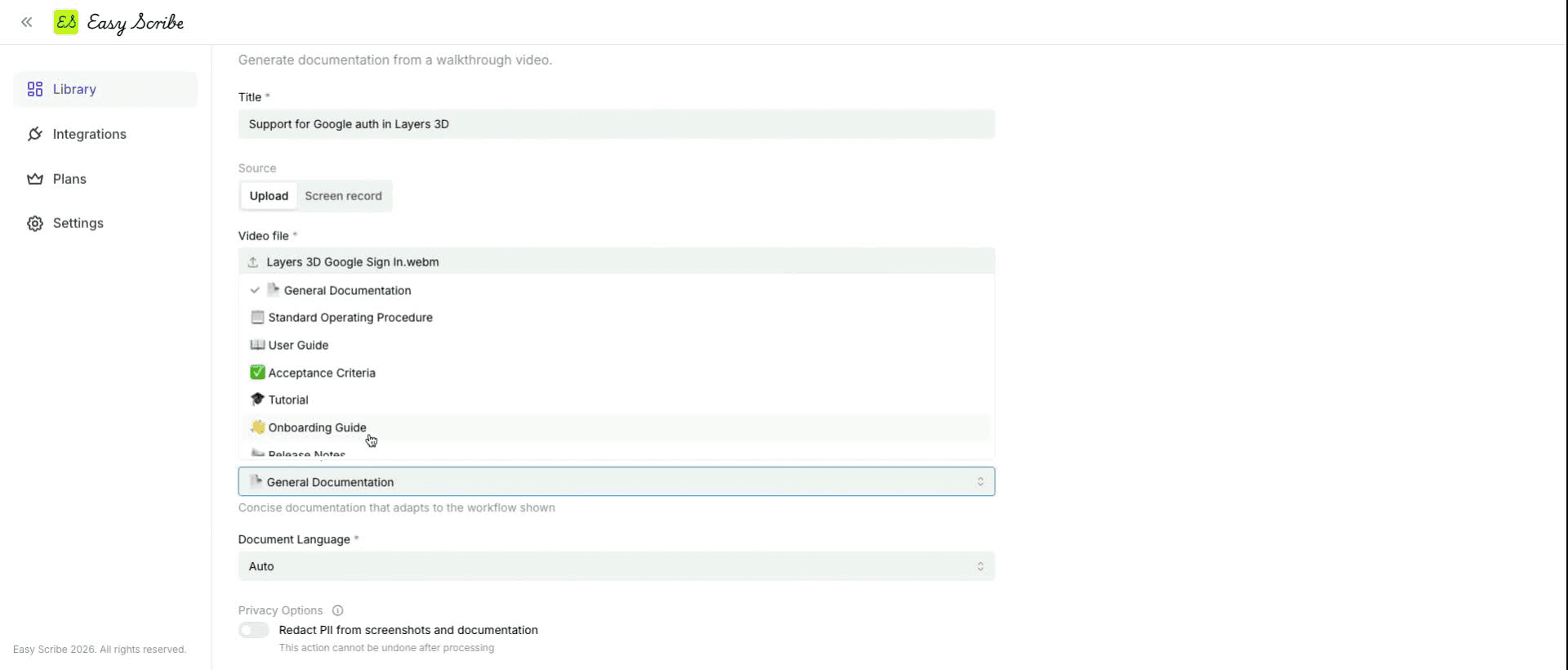
On the New Document form, set your Document Template to Release Notes from the dropdown. Set the language or leave it on Auto. Add optional description or instructions to guide the output (e.g., "Focus on the new dashboard filter feature").
Step 3: Generate and review
Click Create. Easy Scribe generates an ordered document with screenshots extracted at each relevant step. The Release Notes template structures the output for audience-facing product updates, so your doc comes back formatted for that purpose -- not as a raw transcript.
Step 4: Edit in the rich text editor
Refine anything that needs tweaking. The editor supports headings (H1 through H4), bold, italic, lists, links, and drag-and-drop image repositioning. It autosaves, so you will not lose work.
Step 5: Export
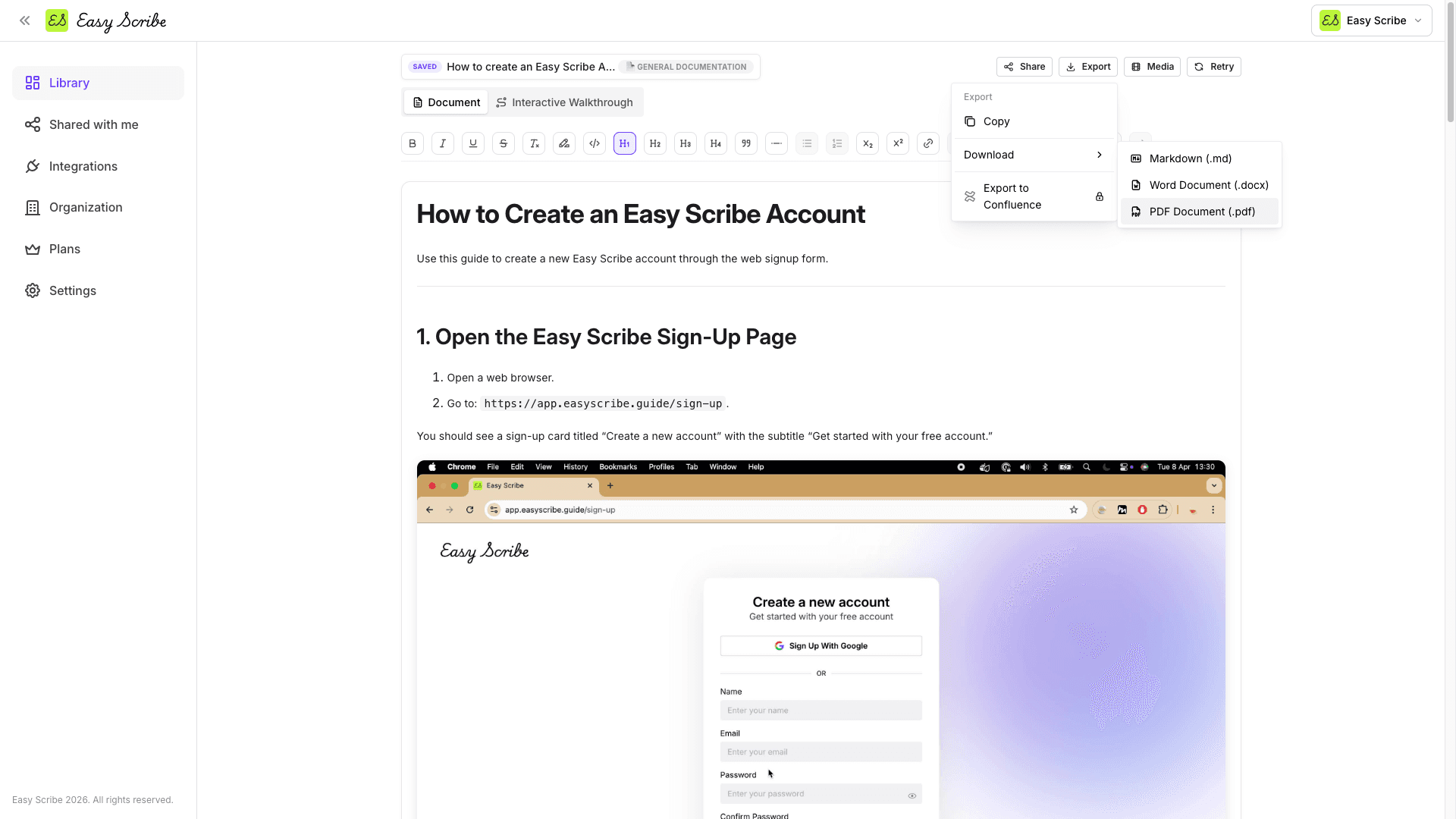
Open the export menu and choose your format:
Markdown -- paste into GitHub, Notion, or any Markdown-friendly tool
PDF -- attach to a release email or ticket
Word (DOCX) -- share with stakeholders who prefer Word
HTML -- embed on your docs site
Confluence (Pro plan) -- publish directly as a new page or update an existing page by Page ID
The whole process takes about 10 minutes of active time, most of which is the recording itself.
What makes this approach stick
The key insight is that re-recording is cheap. When the next sprint changes the same feature, you do not rebuild from scratch. You re-record the changed flow, select the Release Notes template again, and Easy Scribe generates a new version with current screenshots already embedded at the right steps.
The Release Notes template is one of eight document templates Easy Scribe offers. The full list:
General Documentation (default)
Standard Operating Procedure
User Guide
Tutorial
Onboarding Guide
Release Notes
Troubleshooting Guide
Acceptance Criteria
Each template shapes the output for its specific use case, so you are not reformatting a generic document after the fact.
For teams using Confluence
If your team publishes release notes to Confluence, Easy Scribe's Pro plan connects directly via OAuth. Once connected, you can:
Select your Confluence Site and Space
Choose to Create new page or Update existing page (by Page ID)
Optionally set a Parent Page ID to nest the page under a specific parent
Override the page Title if needed
This means you can update a release notes page in Confluence without leaving Easy Scribe. For teams not on Confluence, export to Markdown or HTML and paste into Notion, Jira, or wherever you publish. See the full Confluence export guide for detailed setup steps.
Try it free
No credit card required. Record a feature walkthrough, generate a Release Notes doc, and see if the output is good enough for your next sprint. If it is not, you spent 10 minutes learning that. If it is, you just made release documentation something your team will actually maintain.
Generate your first release notes -- free
FAQs
Do I need to install anything to use Easy Scribe's screen recorder?
No. Easy Scribe is browser-based and requires no install or browser extension. You can also install it as a PWA from the dashboard if you prefer an app-like experience.
Can I use Easy Scribe if I already have a screen recording from another tool?
Yes. You can upload an existing video from your desktop or mobile device and generate documentation from it. Easy Scribe has no upload size limits.
What export formats are available on the free plan?
The Free plan includes export to PDF, Markdown, and HTML. Word (DOCX) export is also available. Confluence export requires the Pro plan.
Can I update an existing Confluence page instead of creating a new one each time?
Yes. When exporting to Confluence on the Pro plan, you can select Update existing page and enter the Page ID. This lets you overwrite a previous release notes page with current content.
What if my release walkthrough is longer than 85 minutes?
Split the recording into shorter clips. The in-app recorder has an estimated maximum of around 85 minutes before performance degrades. You can use the built-in video editor to trim clips and set manual screenshot points before generation.
Your team shipped a feature last sprint. The release notes exist -- sort of. They reference a button that moved two releases ago, and the screenshots show a UI from March. Nobody updated them because updating release notes means opening a doc, re-screenshotting every step, rewriting the descriptions, and reformatting the whole thing.
This is how release notes die. Not because they are unimportant, but because the cost of keeping them alive is higher than anyone wants to pay.
Why stale release notes cost more than you think
Outdated documentation is not just embarrassing -- it is expensive. According to a McKinsey report, employees spend 1.8 hours every day searching for and gathering information, nearly 20% of a typical workweek. When your release notes show the wrong UI, support tickets go up, onboarding slows down, and sales reps share incorrect information with prospects.
As one industry analysis put it, most teams "treat release notes like leftover work." The feature ships, the team celebrates, and then someone scrambles to write a vague update days later. Release notes matter because they serve multiple audiences simultaneously: users need to know what changed, support teams need to preempt tickets, and in regulated industries, documented changes are often a compliance requirement.
The manual update process (you know this one)
Open the old release notes doc.
Open the product and find the changed screens.
Screenshot each one. Crop. Annotate if you are thorough.
Paste into the doc. Realize the old step descriptions no longer match the new screenshots.
Rewrite the steps. Fix the formatting that broke when you pasted.
Export. Attach to the release. Hope nobody notices the one screenshot you missed.
This takes 45 to 90 minutes for a typical feature release. Multiply by biweekly sprints and it becomes a meaningful tax on someone's time -- usually the PM or the developer who built the feature, neither of whom wants to spend an afternoon on documentation.
The Easy Scribe way: record once, generate current release notes
Easy Scribe turns a screen recording into accurate, step-by-step documentation with contextual screenshots. Here is how that applies to keeping release notes current:
Step 1: Record the new feature
Open your Easy Scribe Library, click + New Document, and choose Instant recording to capture your screen directly in the browser -- no install or extension required. Turn the mic on if you want to narrate what you are clicking; the audio transcription feeds the generated instructions. Alternatively, upload an existing recording if you already have one.
Step 2: Choose the Release Notes template
On the New Document form, set your Document Template to Release Notes from the dropdown. Set the language or leave it on Auto. Add optional description or instructions to guide the output (e.g., "Focus on the new dashboard filter feature").
Step 3: Generate and review
Click Create. Easy Scribe generates an ordered document with screenshots extracted at each relevant step. The Release Notes template structures the output for audience-facing product updates, so your doc comes back formatted for that purpose -- not as a raw transcript.
Step 4: Edit in the rich text editor
Refine anything that needs tweaking. The editor supports headings (H1 through H4), bold, italic, lists, links, and drag-and-drop image repositioning. It autosaves, so you will not lose work.
Step 5: Export
Open the export menu and choose your format:
Markdown -- paste into GitHub, Notion, or any Markdown-friendly tool
PDF -- attach to a release email or ticket
Word (DOCX) -- share with stakeholders who prefer Word
HTML -- embed on your docs site
Confluence (Pro plan) -- publish directly as a new page or update an existing page by Page ID
The whole process takes about 10 minutes of active time, most of which is the recording itself.
What makes this approach stick
The key insight is that re-recording is cheap. When the next sprint changes the same feature, you do not rebuild from scratch. You re-record the changed flow, select the Release Notes template again, and Easy Scribe generates a new version with current screenshots already embedded at the right steps.
The Release Notes template is one of eight document templates Easy Scribe offers. The full list:
General Documentation (default)
Standard Operating Procedure
User Guide
Tutorial
Onboarding Guide
Release Notes
Troubleshooting Guide
Acceptance Criteria
Each template shapes the output for its specific use case, so you are not reformatting a generic document after the fact.
For teams using Confluence
If your team publishes release notes to Confluence, Easy Scribe's Pro plan connects directly via OAuth. Once connected, you can:
Select your Confluence Site and Space
Choose to Create new page or Update existing page (by Page ID)
Optionally set a Parent Page ID to nest the page under a specific parent
Override the page Title if needed
This means you can update a release notes page in Confluence without leaving Easy Scribe. For teams not on Confluence, export to Markdown or HTML and paste into Notion, Jira, or wherever you publish. See the full Confluence export guide for detailed setup steps.
Try it free
No credit card required. Record a feature walkthrough, generate a Release Notes doc, and see if the output is good enough for your next sprint. If it is not, you spent 10 minutes learning that. If it is, you just made release documentation something your team will actually maintain.
Generate your first release notes -- free
FAQs
Do I need to install anything to use Easy Scribe's screen recorder?
No. Easy Scribe is browser-based and requires no install or browser extension. You can also install it as a PWA from the dashboard if you prefer an app-like experience.
Can I use Easy Scribe if I already have a screen recording from another tool?
Yes. You can upload an existing video from your desktop or mobile device and generate documentation from it. Easy Scribe has no upload size limits.
What export formats are available on the free plan?
The Free plan includes export to PDF, Markdown, and HTML. Word (DOCX) export is also available. Confluence export requires the Pro plan.
Can I update an existing Confluence page instead of creating a new one each time?
Yes. When exporting to Confluence on the Pro plan, you can select Update existing page and enter the Page ID. This lets you overwrite a previous release notes page with current content.
What if my release walkthrough is longer than 85 minutes?
Split the recording into shorter clips. The in-app recorder has an estimated maximum of around 85 minutes before performance degrades. You can use the built-in video editor to trim clips and set manual screenshot points before generation.

Easy Scribe
Rich documentation, walkthroughs, and guides from screen recordings.
Quick links
RESOURCES
© 2025 Easy Scribe. All Rights Reserved